MS Teams Agent
This page provides detailed configuration instructions for the MS Teams AI Agent, which enables integration with MS Teams for messaging, meeting and file management

Overview
Search and retrieve Teams messages, chats, and channel conversations through Blockbrain
Send messages to Teams channels or chats
Access and manage Teams meetings, including scheduling and joining
Retrieve and share files stored in Teams channels
Access team, channel, and user metadata for collaboration and automation
Automate workflows and notifications across Microsoft Teams

Prerequisites
Complete the general setup steps from the main AI Agents page
Ensure users have active Microsoft 365 accounts with access to Microsoft Teams
Verify appropriate Microsoft 365 licensing for Teams and related services
Azure App Registration Configuration
Required API Permission
Add the following Microsoft Graph permissions to your app registration:
offline_access
Delegated
Maintain access to data you have given it access to
Calendars.ReadWrite
Delegated
Read and write user calendars, including Teams meeting events
ChannelMessage.Send
Delegated
Send messages as the user in any channel in Microsoft Teams
Chat.ReadBasic
Delegated
Read basic information about the user's chats in Teams
Chat.ReadWrite
Delegated
Read and write all chat messages the user can access in Teams
Files.Read
Delegated
Read all files the signed-in user can access, including files shared in Teams channels and chats
OnlineMeetings.ReadWrite
Delegated
Read and create online meetings on behalf of the user in Teams
Presence.ReadWrite
Delegated
Read and update the user's presence information in Teams
Team.ReadBasic.All
Delegated
Read the names, descriptions, and basic properties of all teams in the organization
User.ReadBasic.All
Delegated
Read basic profiles of all users in the organization
openid
Delegated
Sign in the user and allow the app to read the user's basic profile information
As alternative, you can use the
.defaultscope (uses all scopes set in the app)
Redirect URL
Add https://nango.theblockbrain.ai/oauth/callback as allowed redirect URL to your app registration
Permission Configuration Steps
In your Azure app registration, go to API permissions
Click "Add a permission" > Microsoft Graph > Delegated permissions
Search for and select each required permission
Click "Add permissions"
Click "Grant admin consent" (recommended for organization-wide deployment)
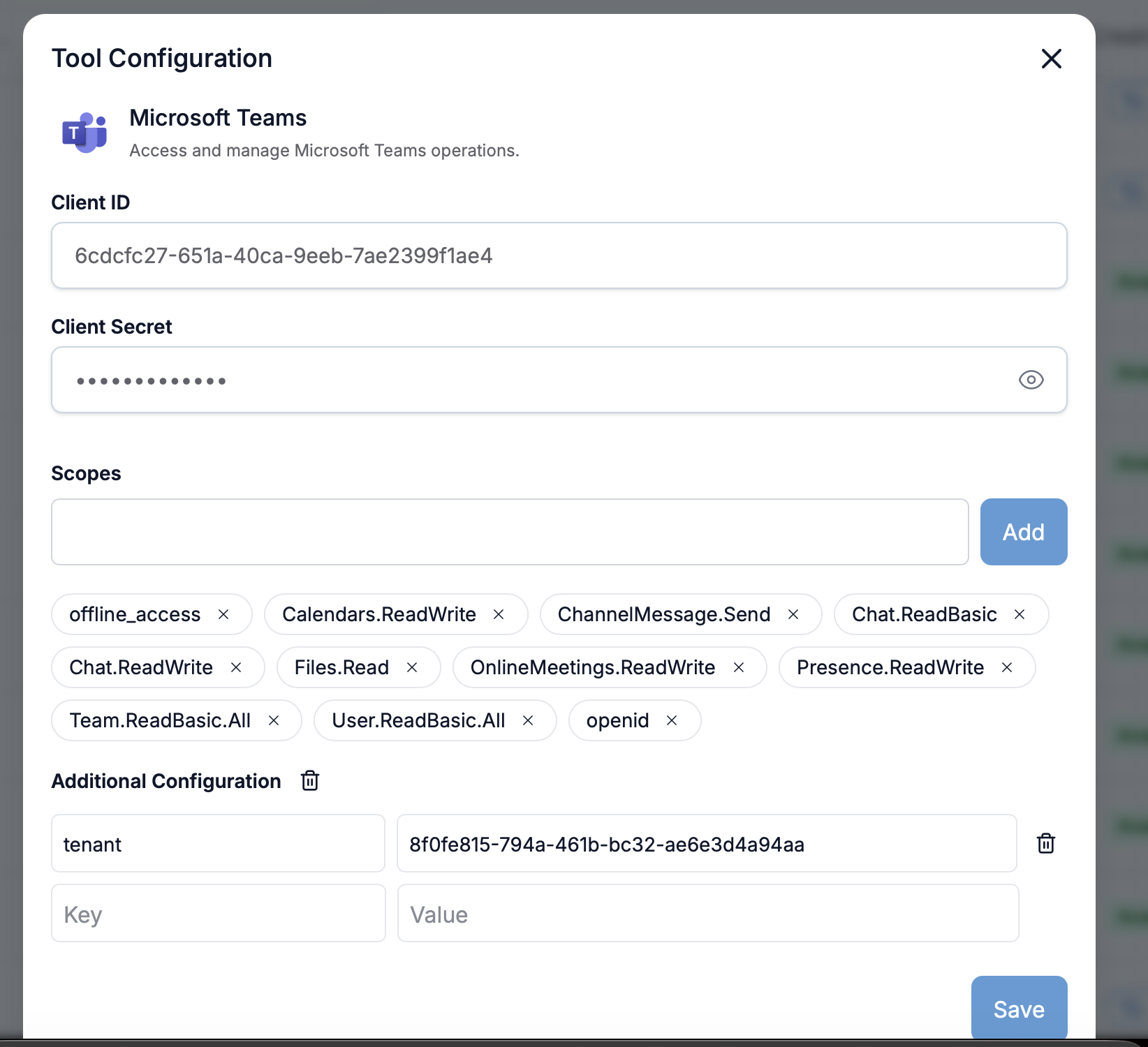
Agent Configuration in Blockbrain


Access Agent Settings:
Navigate to your Blockbrain admin panel
Go to Agents > MS Teams Agent
Click "Configure"
Enter Azure Credentials:
Client ID: Enter the Application ID from your Azure app registration
Client Secret: Paste the client secret you generated
Tenant: Enter your Azure tenant ID
Configure OAuth Scopes:
Add each required scope individually using the "Add" button as mentioned here
Each scope will appear as a removable tag
Use the "X" button to remove incorrect scopes
Additional Configuration (Optional):
Add custom key-value pairs if needed for specific MS Teams Agent requirements
Configure any organization-specific settings as necessary
Save Configuration:
Click "Save" to apply the settings
Wait for the confirmation message
Alternative: Admin Consent Configuration
For simplified scope management with admin pre-approval:
In Azure, grant admin consent for all required Microsoft Graph permissions
In Blockbrain configuration, use the
.defaultscope instead of individual scopesThis eliminates the need for users to consent to individual permissions
Testing the MS Teams Agent
Verification Steps
Connection Test:
Use the built-in connection test in Blockbrain
Verify successful authentication with Microsoft Graph
User Testing:
Have a test user connect their Microsoft account
Attempt to access a known Teams channel, chat, or meeting
Verify message sending, chat retrieval, and meeting access functionality
Permission Validation:
Check that the agent can access the appropriate Teams, channels, and chats
Confirm read/write permissions are working correctly
Common MS Teams Integration Use Cases
Message Search: Find and retrieve messages across Teams channels and chats
Message Sending: Send messages to channels or chats via the agent
Meeting Management: Access, create, or update Teams meetings
File Access: Retrieve files shared in Teams channels or chats
Presence & User Info: Read and update user presence, access user and team metadata
Troubleshooting
Authentication Issues
Problem: "Insufficient privileges" when accessing Teams resources
Solution: Confirm the app registration has all necessary Teams and chat permissions (e.g.,
Chat.ReadWrite,ChannelMessage.Send).Check: Verify the user has access to the relevant Teams, channels, or chats in your organization.
Permission Errors
Problem: "Insufficient privileges" when accessing SharePoint
Solution: Confirm the app registration has
Sites.Read.AllandFiles.Read.AllpermissionsCheck: Verify the user has SharePoint access in your organization
Scope Configuration Issues
Problem: Scopes not saving correctly
Solution: Add each scope individually using the "Add" button
Check: Remove any duplicate or incorrect scopes using the "X" button
Security Considerations
Data Access: The agent inherits the user's Teams and Microsoft 365 permissions
Scope Limitation: Access is limited to Teams, channels, and chats the authenticated user can access
Data Privacy: Data is processed according to Blockbrain's data handling policies
Audit Trail: Teams access is logged in both Azure AD and Microsoft 365 audit logs
Next Steps
After successful MS Teams Agent configuration:
Train users on MS Teams integration features
Configure additional agents (e.g., SharePoint, Outlook) if needed
Monitor usage and performance through Azure AD reports
Last updated