# Website Web Component

## Key Steps

### **Step 1: Choose Integration Mode**

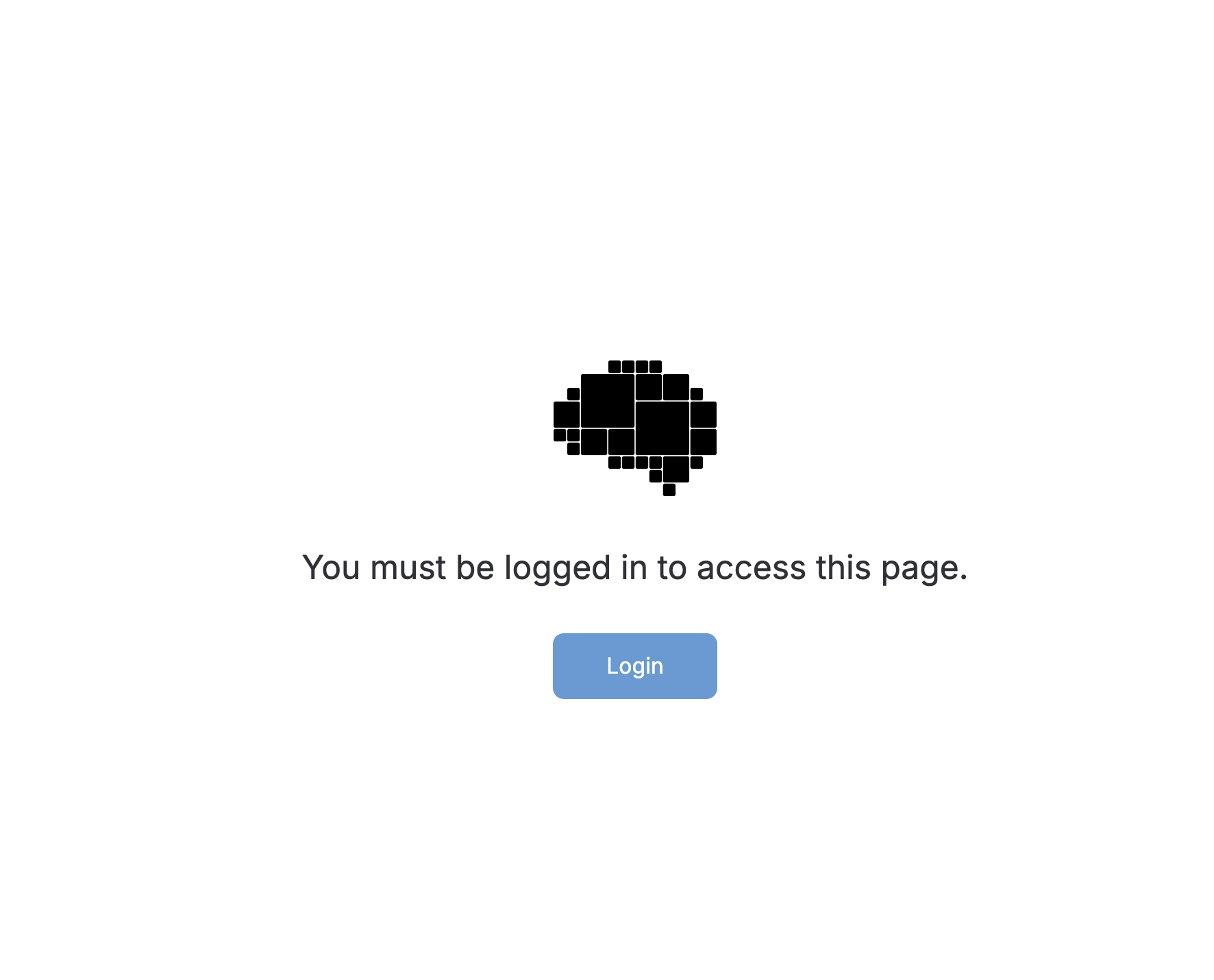
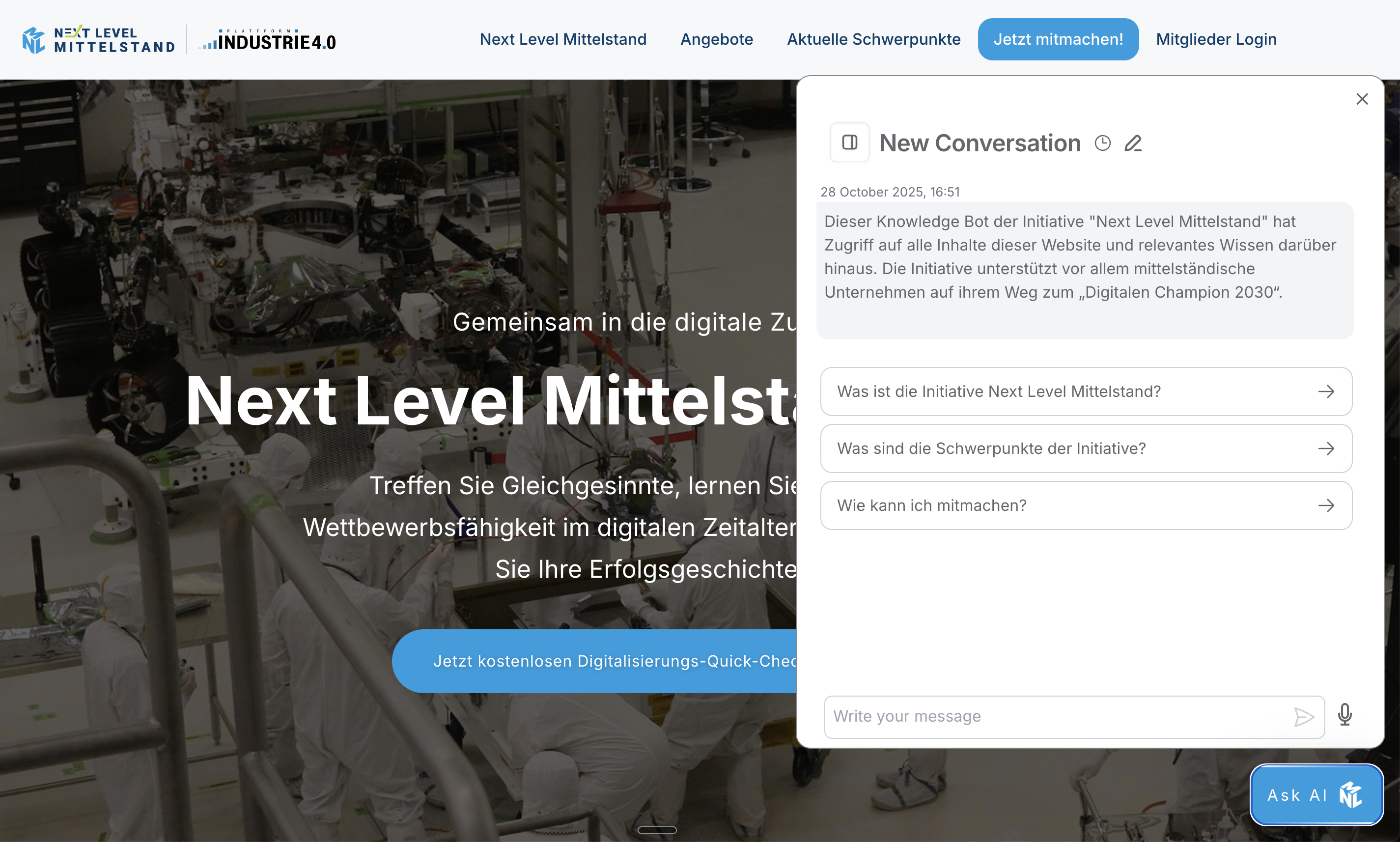
<div><figure><img src="https://3232460952-files.gitbook.io/~/files/v0/b/gitbook-x-prod.appspot.com/o/spaces%2FIabFtGTeQzwfWCzp8vd6%2Fuploads%2FERGOKC9fhiarFkXaTCcV%2FBildschirmfoto%202025-10-28%20um%2016.51.35.png?alt=media&#x26;token=a32679a4-382e-46d1-9db6-ac1621146449" alt=""><figcaption><p>Private Mode</p></figcaption></figure> <figure><img src="https://3232460952-files.gitbook.io/~/files/v0/b/gitbook-x-prod.appspot.com/o/spaces%2FIabFtGTeQzwfWCzp8vd6%2Fuploads%2FQMD8cwd5cgitp6Rrm83z%2FBildschirmfoto%202025-10-28%20um%2016.51.20.png?alt=media&#x26;token=d80376db-ab3b-4c35-8edd-f223f0fe7103" alt=""><figcaption><p>Public Mode</p></figcaption></figure></div>

* Decide between two integration modes:
  * **Public Mode**: No authentication required; all users can chat with the interface.
  * **Private Mode**: Requires user authentication; users must log in to access their conversation history.
* **Ping your Blockbrain Key Account Manager** that you want to add a webcomponent to your website.

&#x20;

### **Step 2: Prepare Your Website**

* **Add the necessary header script to your website.**

```
<script 
  type="module"
  src="https://assets.theblockbrain.io/scripts/blocky-chat/blocky-chat.bundle.js"
  async
></script>
```

* Ensure you have the following information ready:
  * **Organization ID**: Obtain from your Blockbrain key account or team member.
  * **Issuer URL**: This will be your company Blockbrain URL (e.g. <https://demo.kb.theblockbrain.ai/>).
  * **Webcomponent Bot UID**: The Id of a bot mapping created in the admin section of your Blockbrain. Needs to be added by an admin.

&#x20;

### **Step 3: Configure the Web Component**

<pre><code><strong>&#x3C;blockbrain-main 
</strong>  orgId="your-org-id"
  issuer="https://your-blockbrain-domain.com" 
  uid="your-webcomponent-bot-uid" 
  userUid="optional-user-id">
&#x3C;/blockbrain-main>
</code></pre>

* Set up the web component with the following parameters:
  * **Organization ID**: Insert your organization ID - retrieved from Blockbrain team.
  * **Issuer**: Insert the issuer URL - <https://your-blockbrain-domain.com>.
  * **UID**: Webcomponent Bot UID - e.g., CompanyGPT.
  * **User UID**: Not relevant for private and restricted bots, optional for public bots.

## Private Mode

### **Step 4: Setup Authentication**

<pre><code><strong>&#x3C;blockbrain-main 
</strong>  orgId="your-org-id"
  issuer="https://your-blockbrain-domain.com" 
  uid="your-webcomponent-bot-uid" 
&#x3C;/blockbrain-main>
</code></pre>

* If using private mode, **ensure the issuer is included** in the configuration.
* Remove the userUid, that is only for public mode.
* Test the login functionality:
  * Click the login button to trigger the OAuth authentication.
  * Verify that you can access your conversation history.

&#x20;

## Public Mode

### **Step 5: Use Public Mode**

<pre><code><strong>&#x3C;blockbrain-main 
</strong>  orgId="your-org-id"
  uid="your-webcomponent-bot-uid" 
  userUid="optional-user-id">
&#x3C;/blockbrain-main>
</code></pre>

* To switch to public mode, **remove the issuer from the configuration**.
* Ensure the organization ID and company UID are still included.
* Remove the userUid if not needed, it can be used to distinguish users.
* Test the public chat functionality to confirm it works without authentication.

## Video

{% embed url="<https://drive.google.com/file/d/17ShFDF5fo68n6PTK7lRI25jkmszpI8G-/view?usp=sharing>" %}
