# Create a Sharepoint Connection
{% hint style="warning" %}
**Attention:** Before you connect **Sharepoint**, please make sure that you have already completed the [**Entra ID integration**](https://docs.en.theblockbrain.ai/for-admins/classic-microsoft-integrations/entra-id-integration)**!**
{% endhint %}
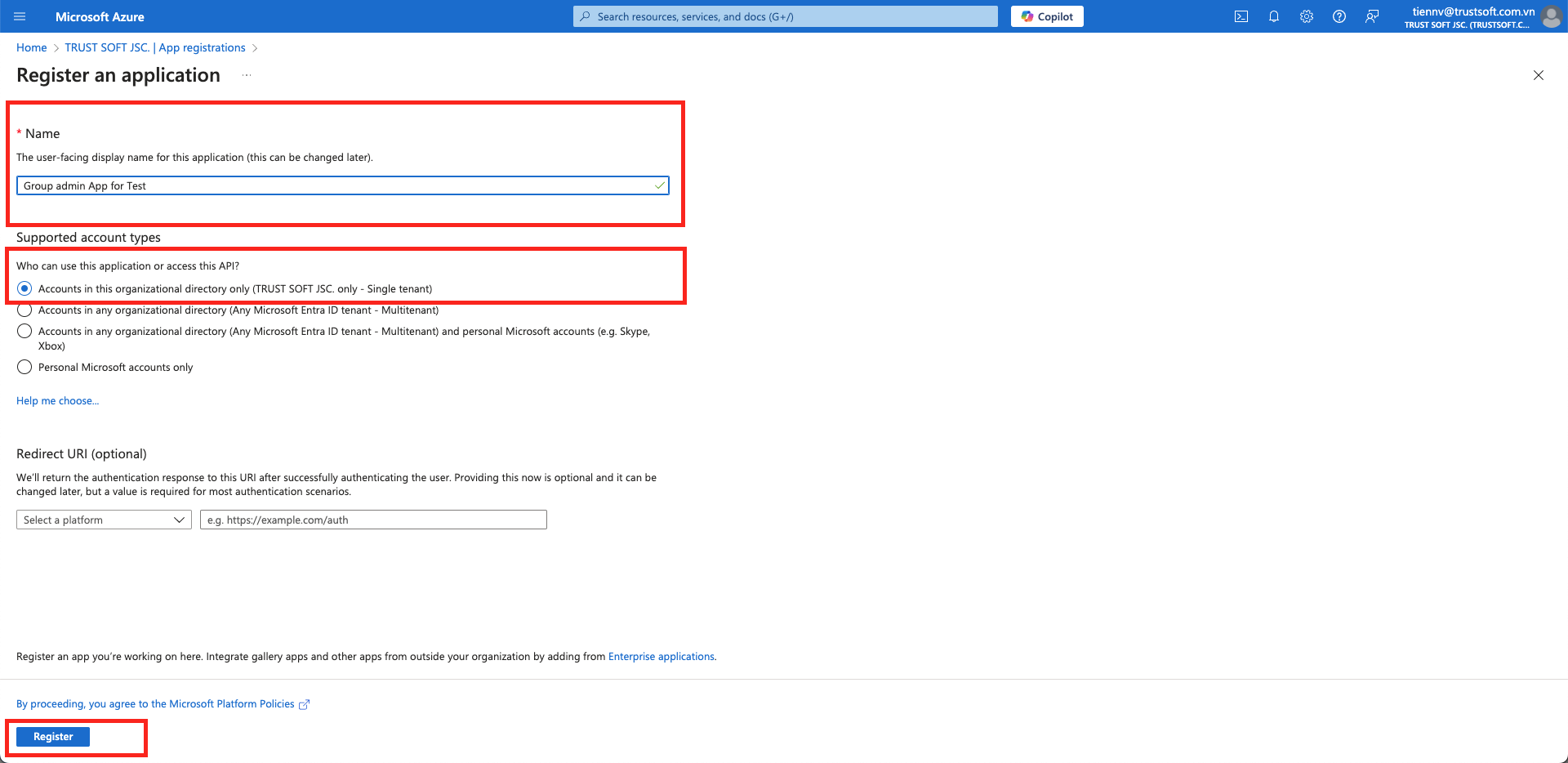
## 1. **Create a New Sites Admin App**
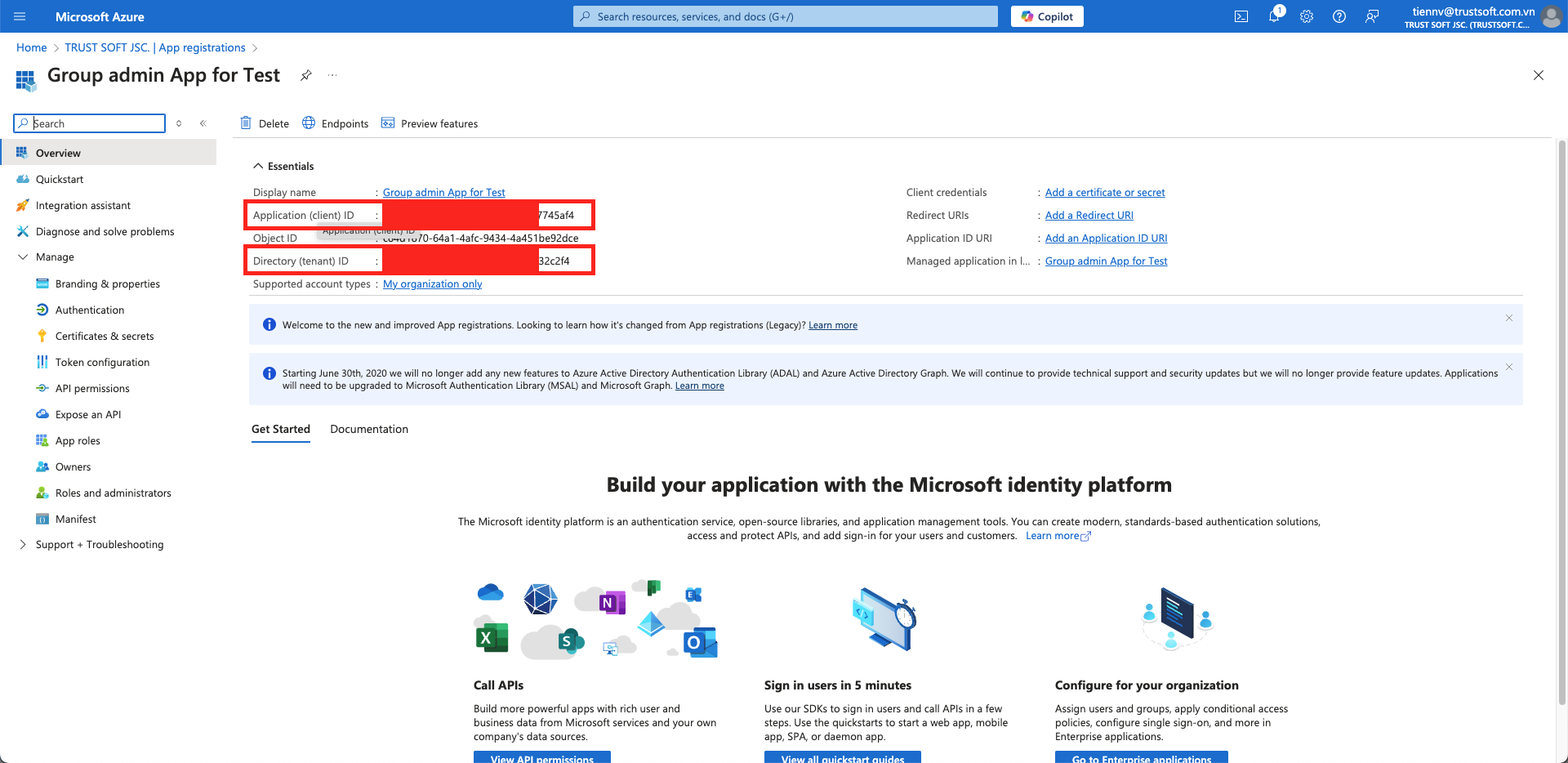
Go to the Overview page and obtain the `Application (client) ID` and `Directory (tenant) ID`. \
Save this information in a text file.
{% hint style="success" %}
We will only need the Admin App in this step to assign permissions to your Target App and credentials are not persisted. Optionally you can also delete the Admin App after the full setup process.
{% endhint %}
Still want to avoid Admin App Permissions?
If you prefer to avoid giving admin app permissions, please integrate using[sharepoint-manual-site-setup](https://docs.en.theblockbrain.ai/for-admins/classic-microsoft-integrations/create-a-sharepoint-connection/sharepoint-manual-site-setup "mention").
*(This will require you to use **PnP PowerShell** or **Microsoft Graph API** to manually grant the app access to specific SharePoint sites)*
## **2. Grant Graph API Permission**
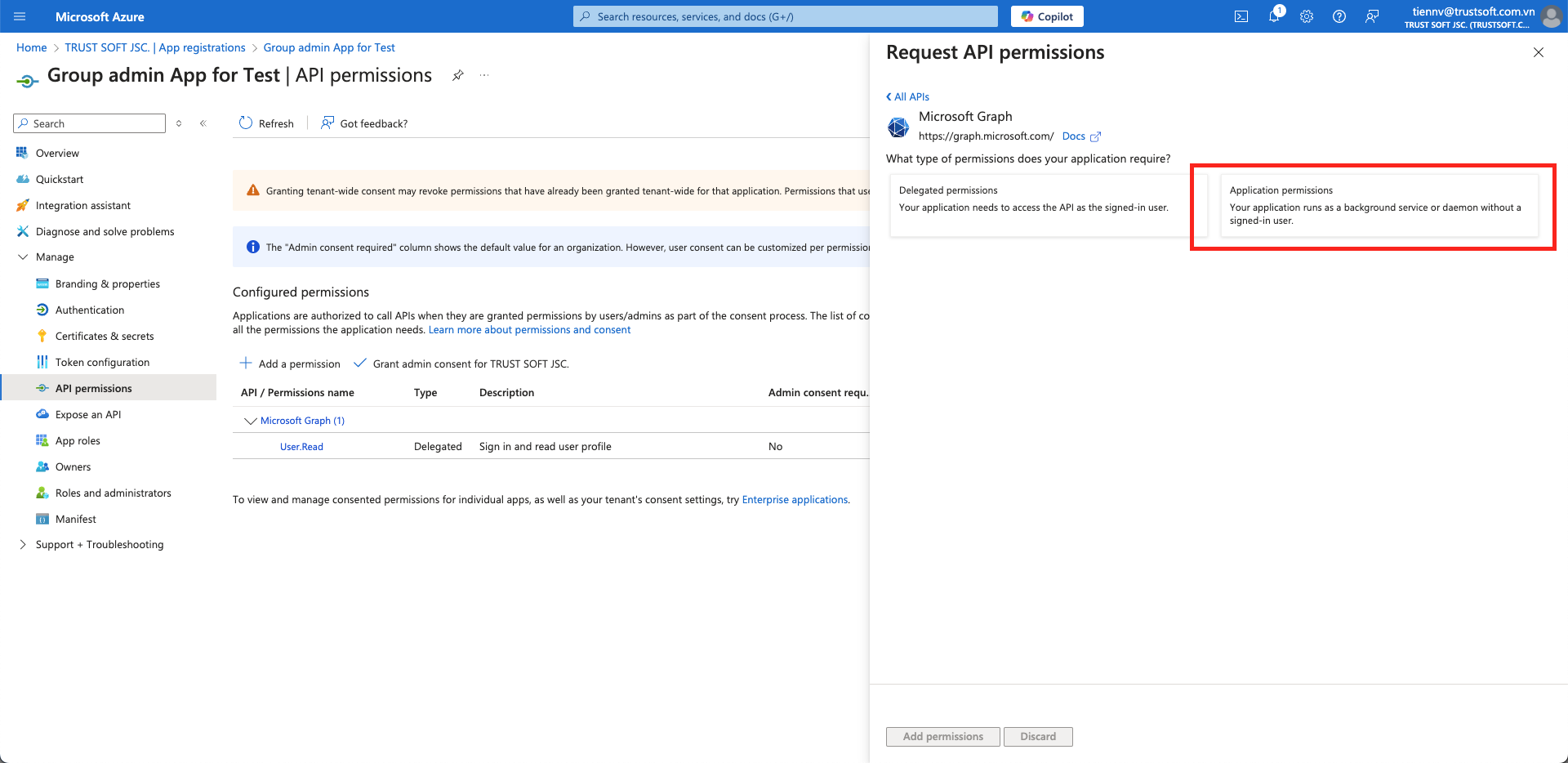
1. Navigate to `API permission` and `+ Add a permission` there. Use the `Application permission` option there.
Always use application permissions instead of delegated permissions
2. In the Sites Admin App Registration, grant Graph API permissions for **`Application.Read.All`, `Sites.FullControl.All`.**
Important: Why Sites.FullControl.All?
The far-reaching rights (Sites.FullControl.All) are only required for the one-off setup. Specifically:
1. **Admin Application:**
* The Admin App only needs Sites.FullControl.All to assign the required authorizations to the target application.
* The access data of the Admin App is not saved permanently.
2. **After setup:**
* During operation, only the target application accesses SharePoint - and only the sites that are actually relevant.
* The rights of the target application are restricted accordingly.
3. **Optional:**
* The admin app can even be deleted again once setup is complete.
**Conclusion:**\
The extensive rights are only temporary and only necessary for the initial configuration. During subsequent operation, only the minimum required rights are used.
3. With admin rights, click the **`Grant admin consent`** link to approve the permissions.
## 3. Create a Client Secret Key
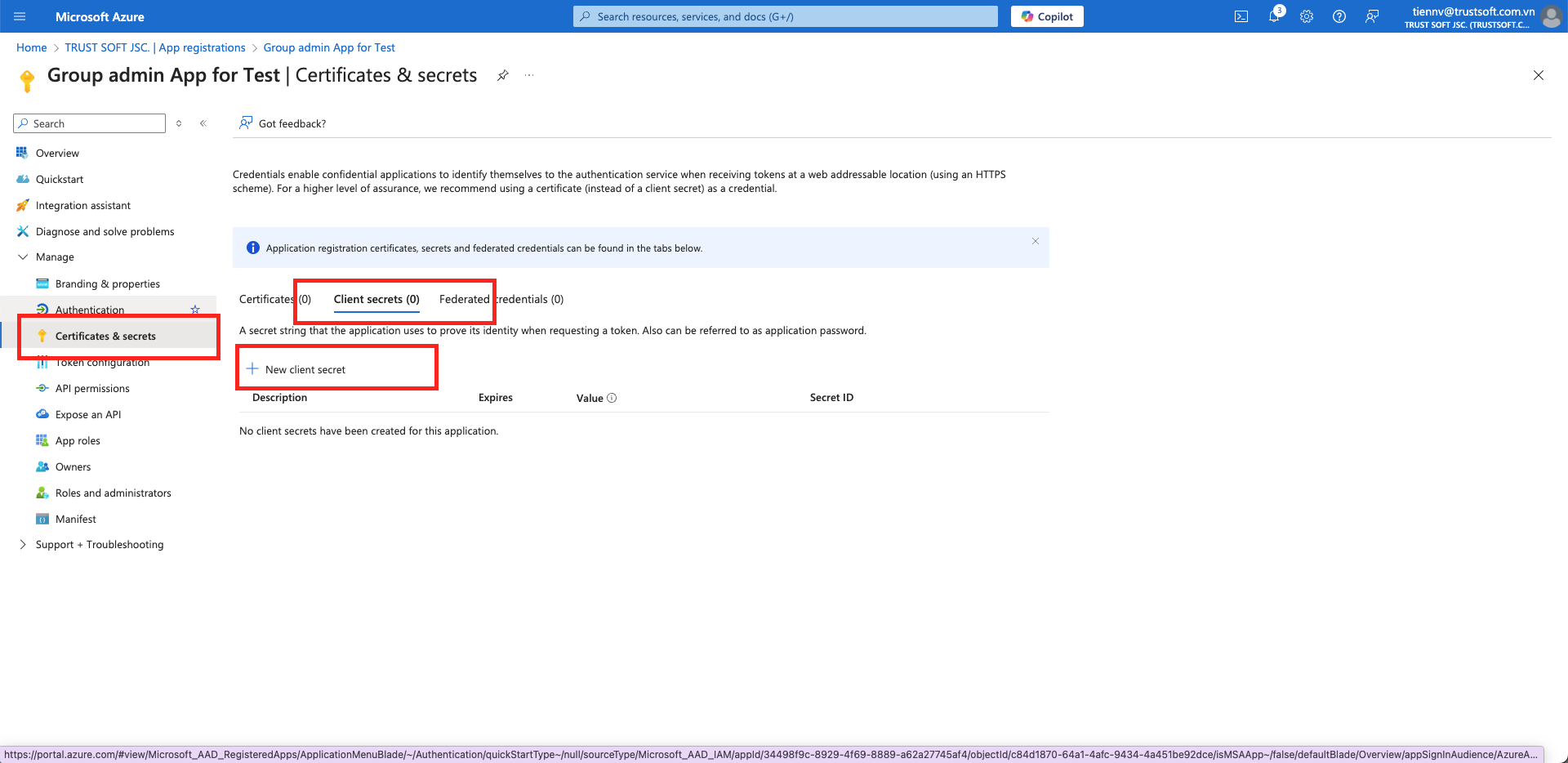
1. Navigate to the **`Certificates & Secrets`** page to create client secrets.
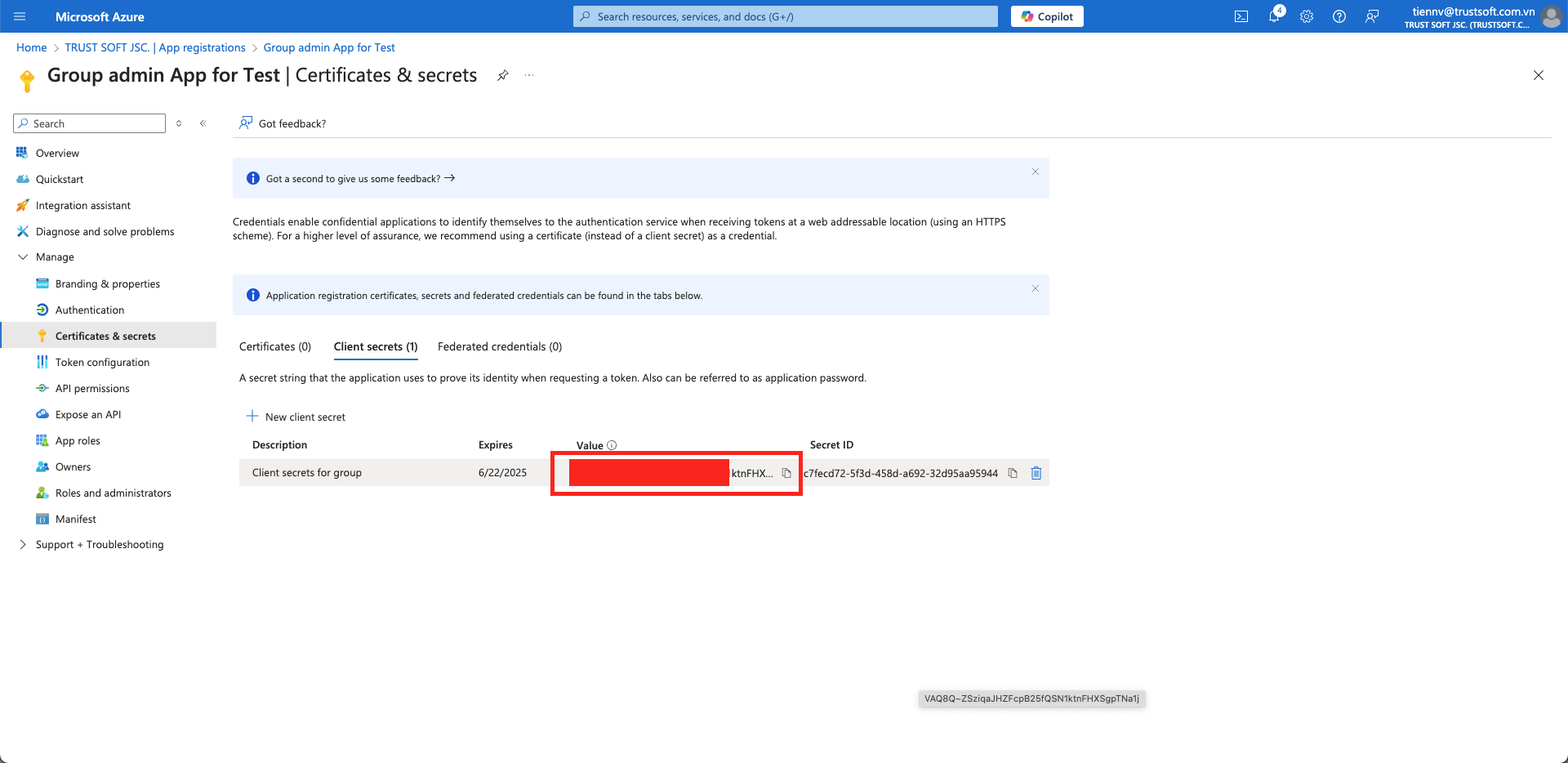
2. Copy the **Secret Key Value** (NOT the Secret ID) to the text file containing the Client ID and Tenant ID.
3. Your text file should now include
## **4. Create an additional Target Application**
1. Follow the same steps as above to register another application, which will serve as the target application for SharePoint integration.
2. Ensure that this application also has **`Sites.Selected`** permissions.
3. After registering, create a new **Secret Key Value** (NOT the Secret ID) and save it. Your target app text file should now include:
## **5. Configure SharePoint Integration in Blockbrain**
{% hint style="warning" %}
**Attention:** At this point you will have 2 Azure Apps configured (Admin and Target). \
If not, go back to step [#id-4.-create-an-additional-target-application](#id-4.-create-an-additional-target-application "mention").
{% endhint %}
1. Access the **`Integrations`** Panel in Blockbrain by clicking on the **`Admin`** button at the top right corner of the screen.
2. In the Integrations section, click on the SharePoint Integrations **`Connect`** button to begin setting up the integration.
3. Choose the **`SharePoint Site Discovery (Admin Key Required)`** option.
{% hint style="warning" %}
**Attention:** If you prefer to avoid giving admin access permissions with the **`SharePoint Site Setup (No Admin Key)`** Option, please refer to[sharepoint-manual-site-setup](https://docs.en.theblockbrain.ai/for-admins/classic-microsoft-integrations/create-a-sharepoint-connection/sharepoint-manual-site-setup "mention").
{% endhint %}
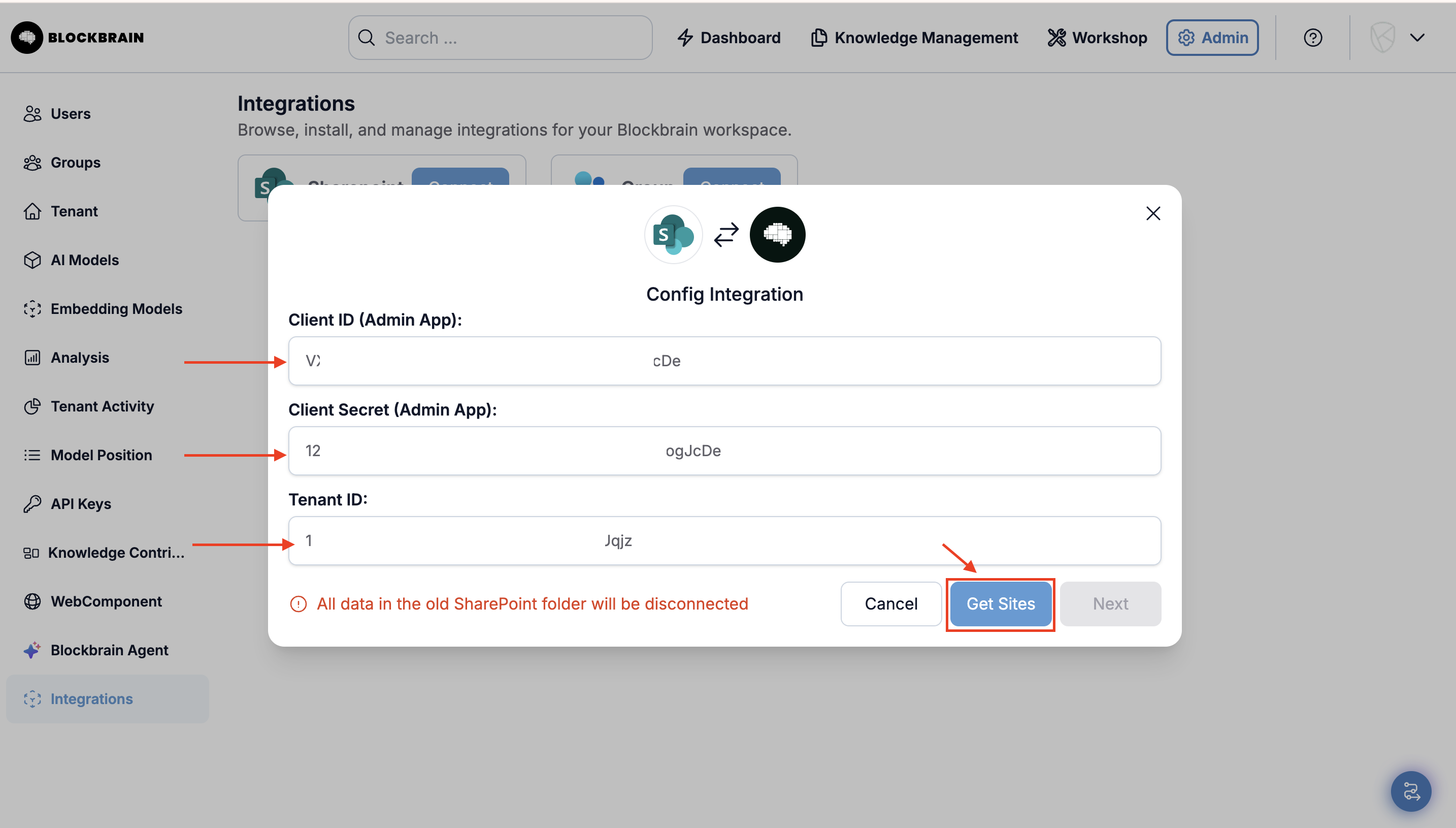
4. Enter the **Admin Azure App Details** in the pop-up window that will appear for configuring the integration.
* **`Application (client) ID`** (Admin App)
* **`Secret Key Value`** (NOT the Secret ID - of the Admin App)
* **`Directory (tenant) ID`** (Admin App)
5. Fetch all available sites by click on **`Get Sites`**. The system will display a list of SharePoint sites that you can connect to.
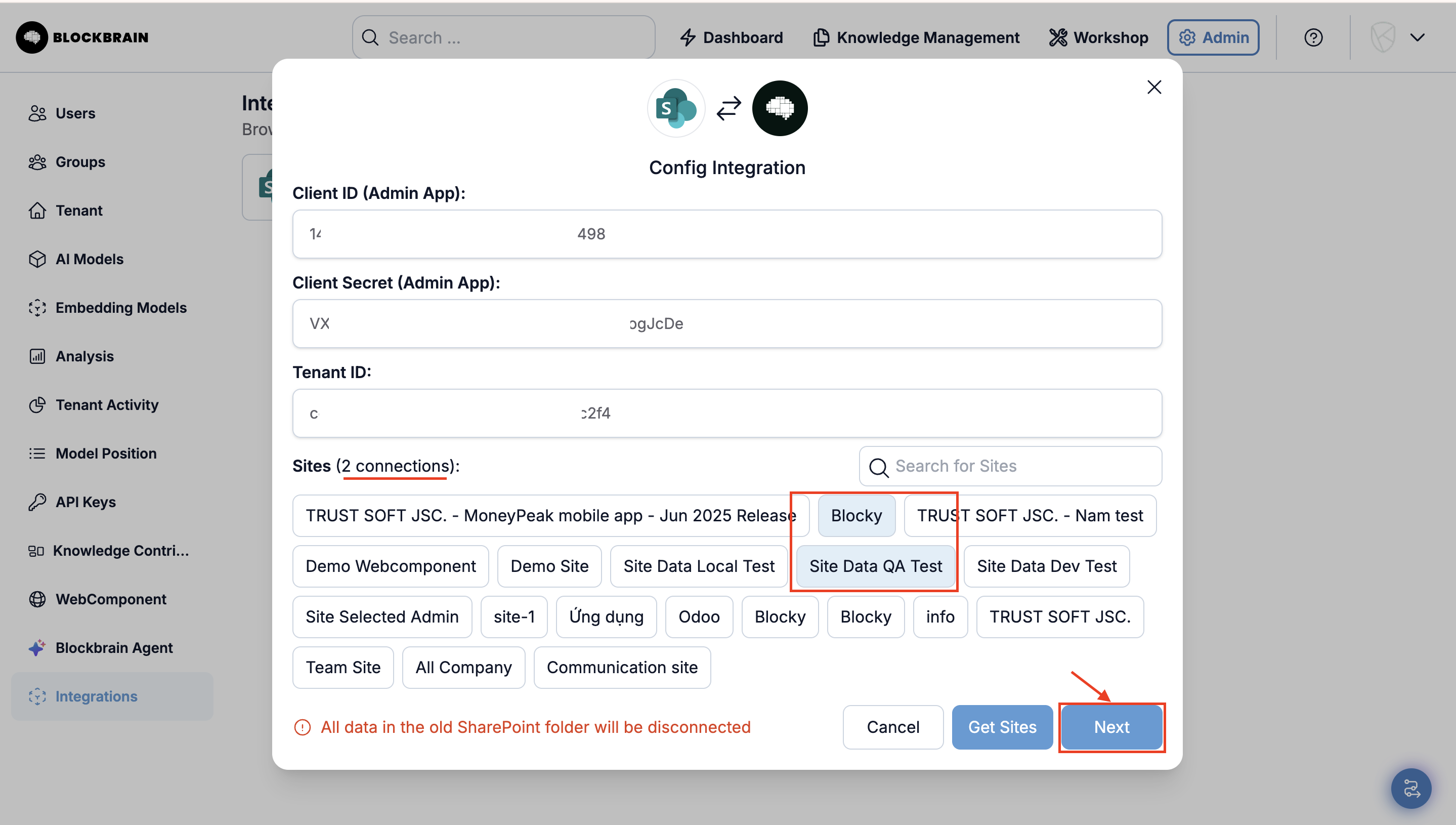
6. From the list of available sites, **select the ones you want to integrate** with Blockbrain. Multiple sites can be selected by clicking on each option. Click on the **`Next`** button to finalise.
{% hint style="success" %}
You can aways change the connected Sites later by selecting new ones in this view or deselecting the ones you want to disconnect.
{% endhint %}
7. In the final configuration screen, enter the **Target Azure App Details from** [#id-4.-create-an-additional-target-application](#id-4.-create-an-additional-target-application "mention") and click on the **`Save`** button to connect.
* **`Application (client) ID`** (Target App)
* **`Secret Key Value`** (NOT the Secret ID - of the Target App)
{% hint style="danger" %}
**Data Disconnection Warning:**
Be aware that **all data in the old SharePoint folder will be disconnected** when you proceed with the integration. Ensure that you are ready to disconnect the old folder before saving.
{% endhint %}
## 6. Connect a Sharepoint Site as Knowledge Base
1. To connect a site to a knowledge base and use it with a bot, follow the instructions in [connect-a-sharepoint-site-as-knowledge-base](https://docs.en.theblockbrain.ai/for-admins/classic-microsoft-integrations/create-a-sharepoint-connection/connect-a-sharepoint-site-as-knowledge-base "mention")
## Best Practices & Troubleshooting
* **Credentials Accuracy**\
Double‑check **`Client ID`**, **`Client Secret Key`**, and **`Tenant ID`** against your Azure AD app.
* **API Permissions**\
Confirm the Azure AD app has been granted and consented for the required Graph scopes.

.png?alt=media&token=1301f471-95fa-4fb7-a007-6799e17b76be)

.png?alt=media&token=2e1c3e4b-dc62-43a1-b321-4e40b56515be)


.png?alt=media&token=0bcf7b05-a055-498b-9717-ea0691ebc92d)