# Azure Groups Integration

{% hint style="warning" %}
**Attention:** Before you connect **Azure Groups**, please make sure that you have already completed the [**Entra ID integration**](https://docs.en.theblockbrain.ai/for-admins/classic-microsoft-integrations/entra-id-integration)**!**
{% endhint %}

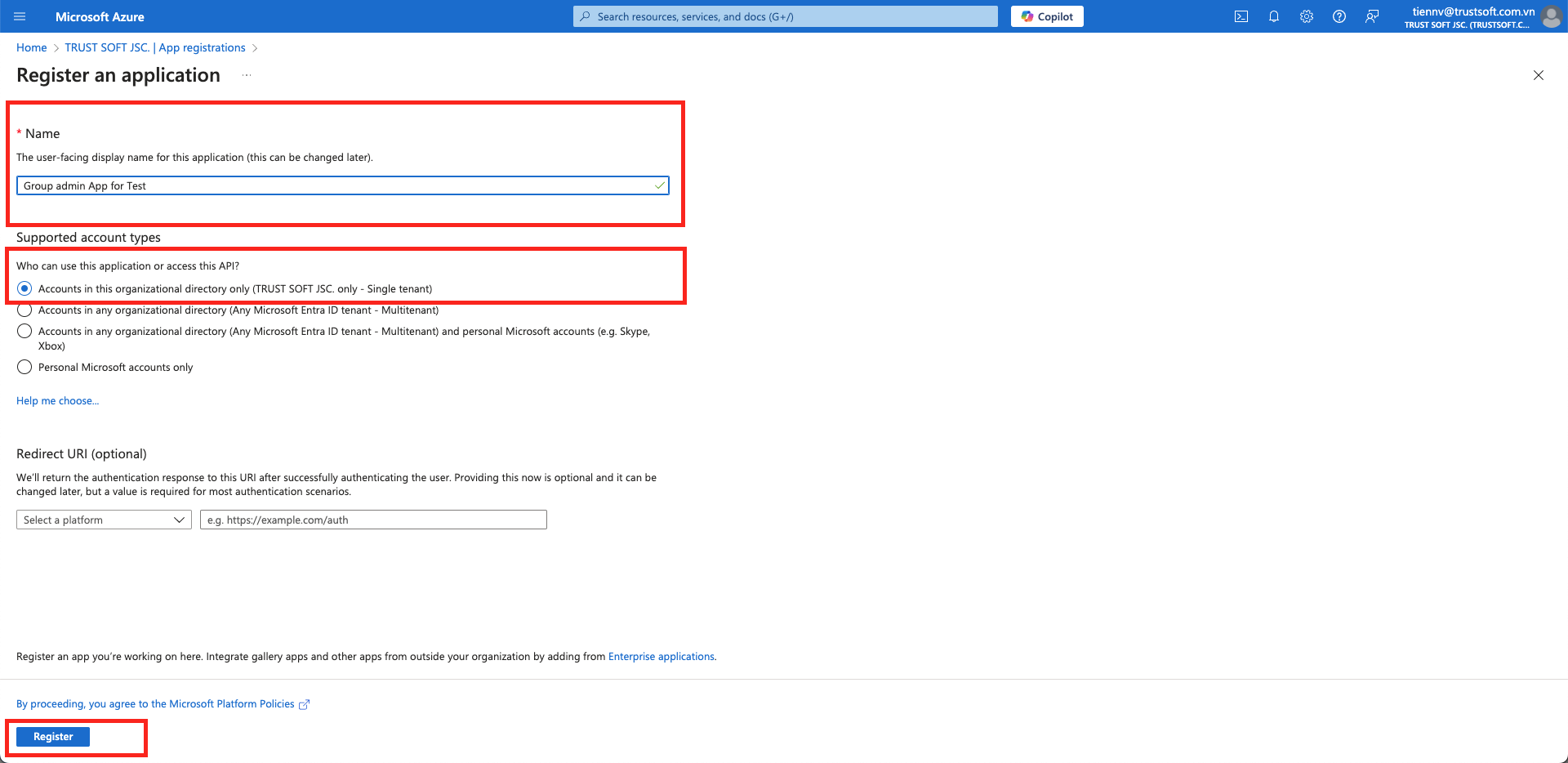
## 1. **Create a New Sites Admin App**

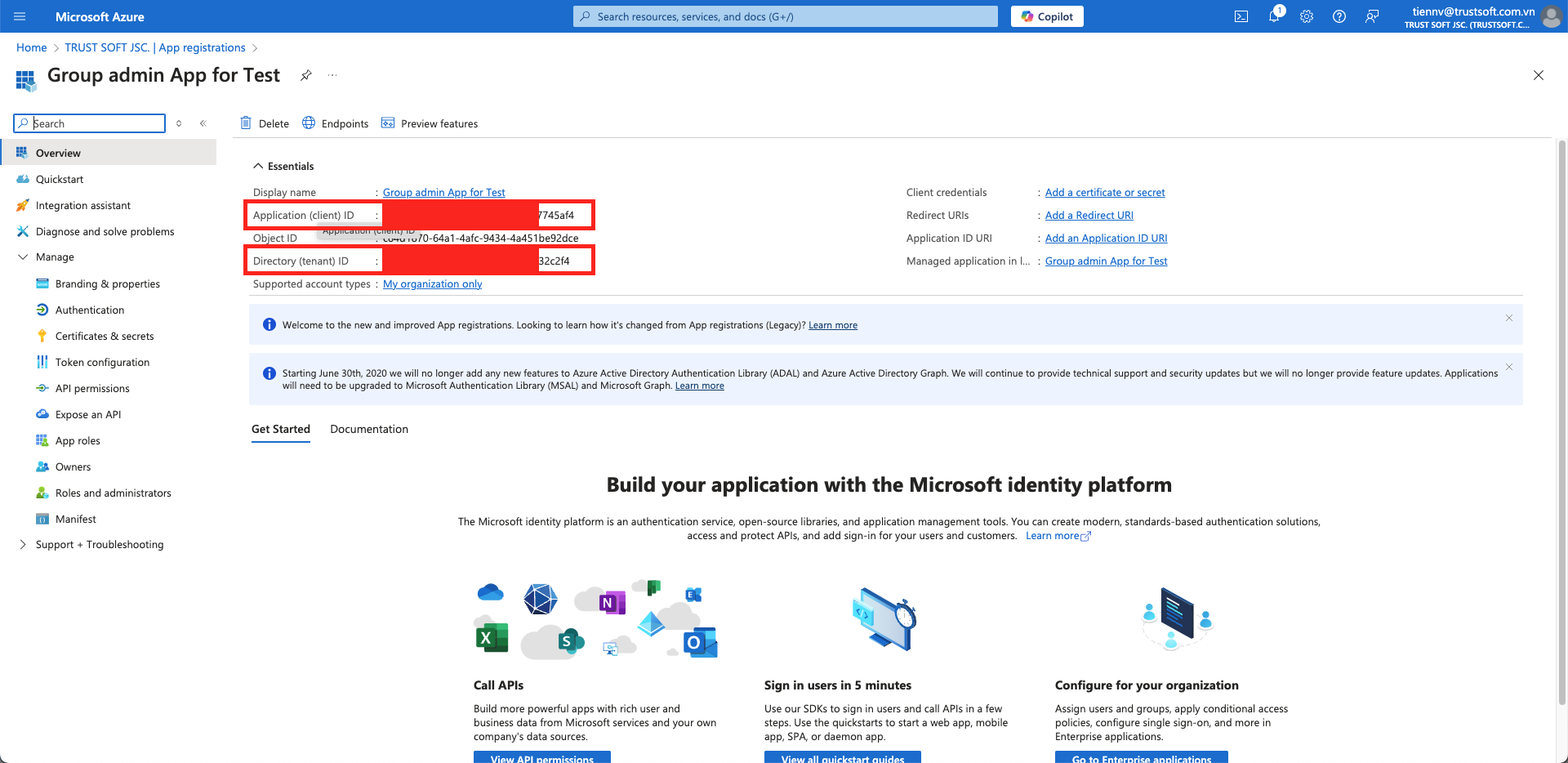
Go to the Overview page and obtain the **`Application (client) ID`** and **`Directory (tenant) ID`**. \
Save this information in a text file.

<figure><img src="https://t36648312.p.clickup-attachments.com/t36648312/92a29ac3-7b40-4d77-b9e7-72fd26615fe8/image.png" alt=""><figcaption></figcaption></figure>

<figure><img src="https://t36648312.p.clickup-attachments.com/t36648312/3c40fcb3-5f24-4931-a469-ff9d5cce622e/image.png" alt=""><figcaption></figcaption></figure>

## **2. Grant Graph API Permission**

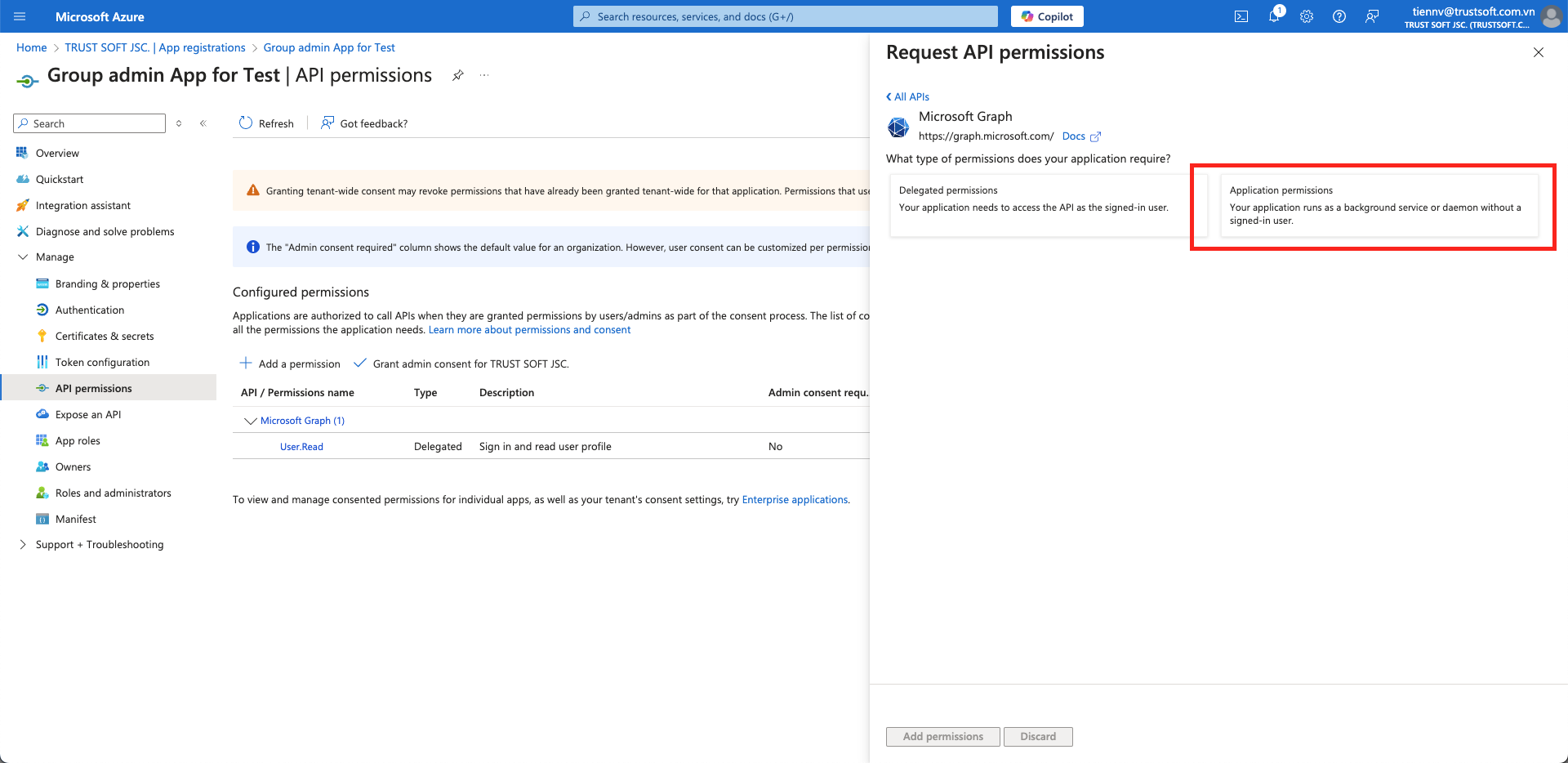
1. Navigate to **`API permission`** and **`+ Add a permission`** there. Use the **`Application permission`** option there.              &#x20;

<figure><img src="https://t36648312.p.clickup-attachments.com/t36648312/3fb0629b-574a-49cb-b950-e55db328c37c/image.png" alt=""><figcaption><p>Always use application permissions instead of delegated permissions</p></figcaption></figure>

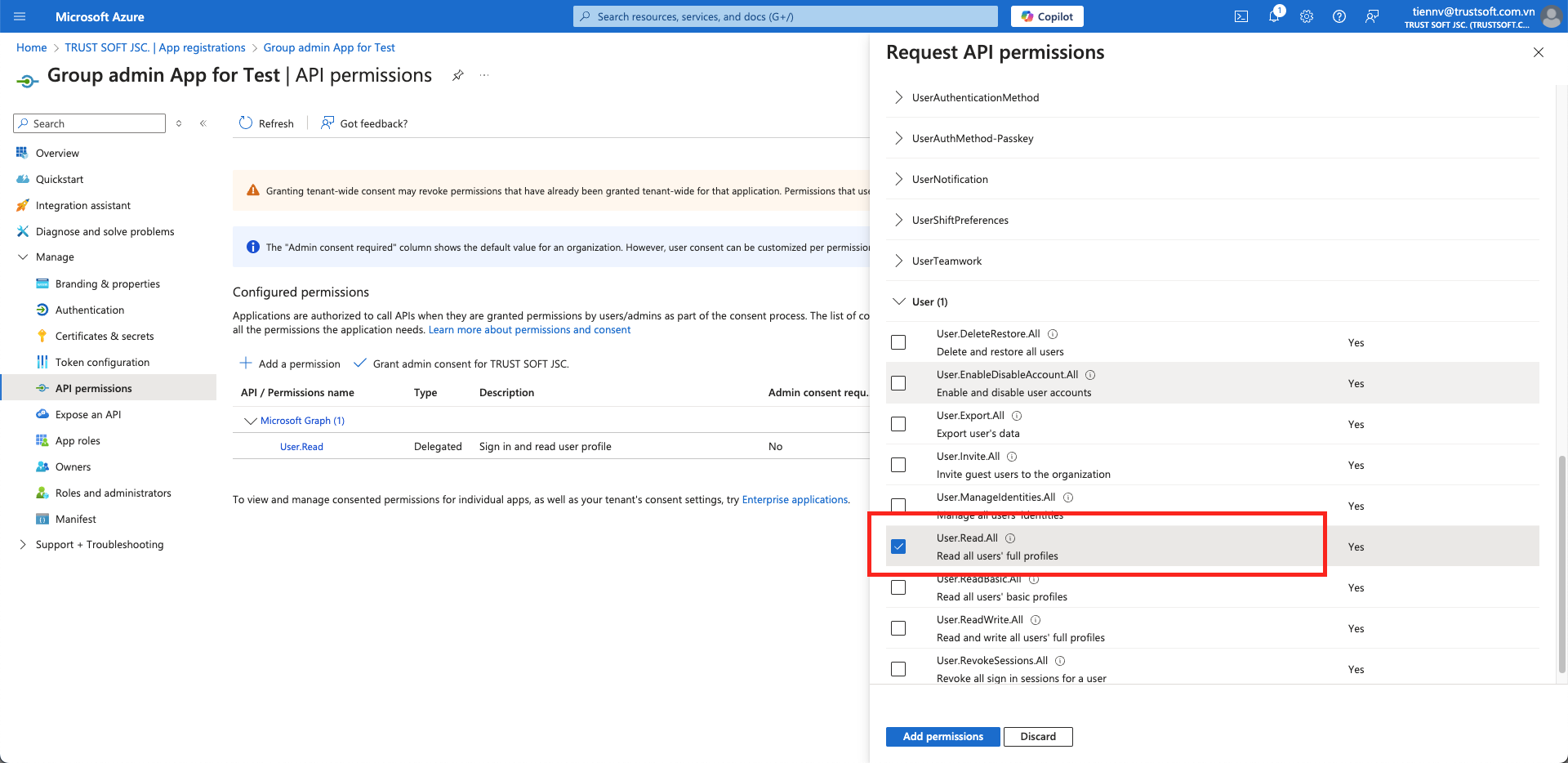
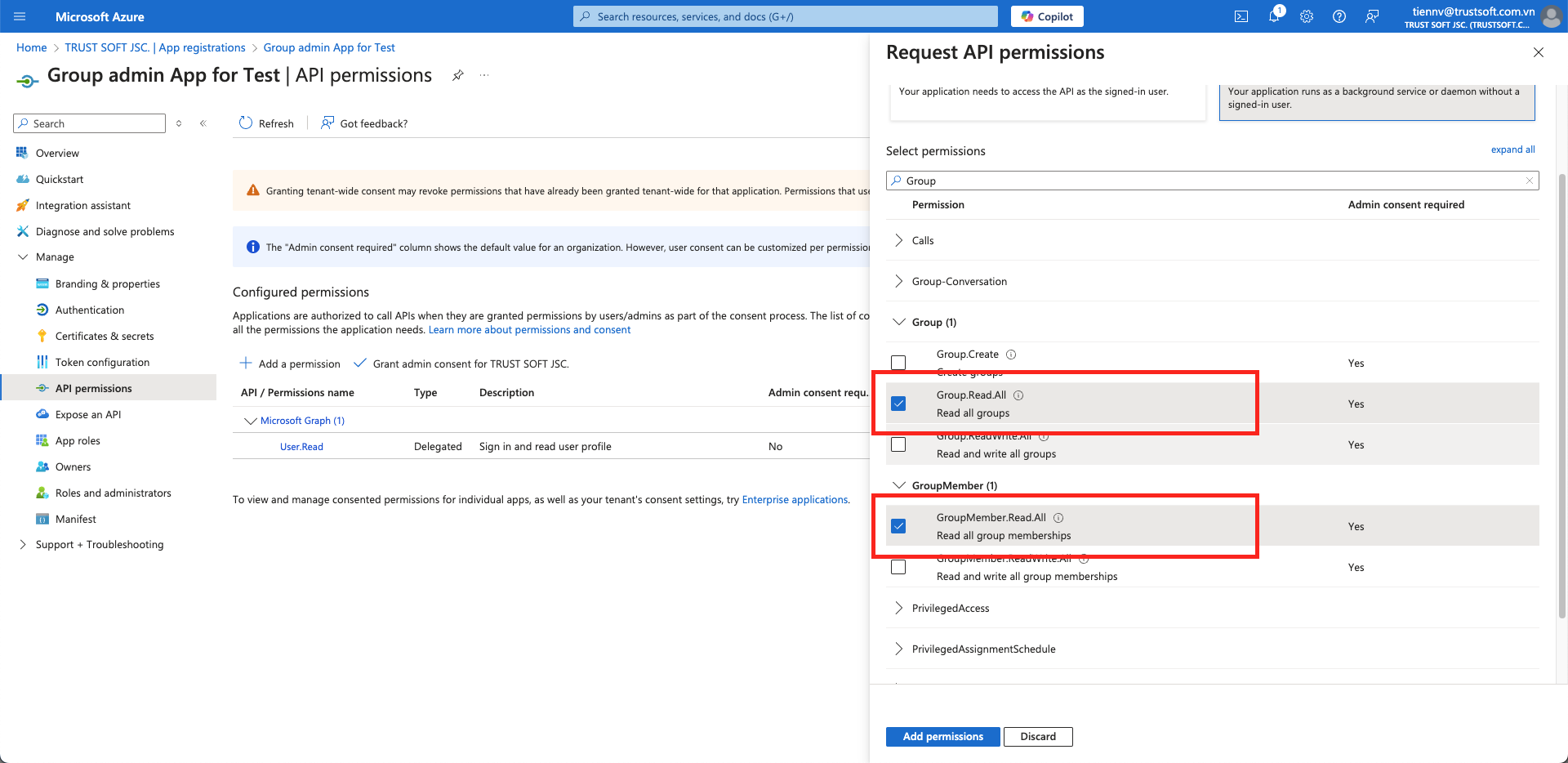
2. In the Sites Admin App Registration, grant Graph API permissions for **`User.Read.All`**,    **`Group.Read.All`**, **`GroupMember.Read.All`**

<figure><img src="https://t36648312.p.clickup-attachments.com/t36648312/b061330f-b5db-435c-8f7e-87531eaada97/image.png" alt=""><figcaption><p>Azure group access will always need User.Read.All rights (User.Read only will not work)</p></figcaption></figure>

<figure><img src="https://t36648312.p.clickup-attachments.com/t36648312/cdebb986-3b44-4162-b1c6-adbcf6ed9440/image.png" alt=""><figcaption></figcaption></figure>

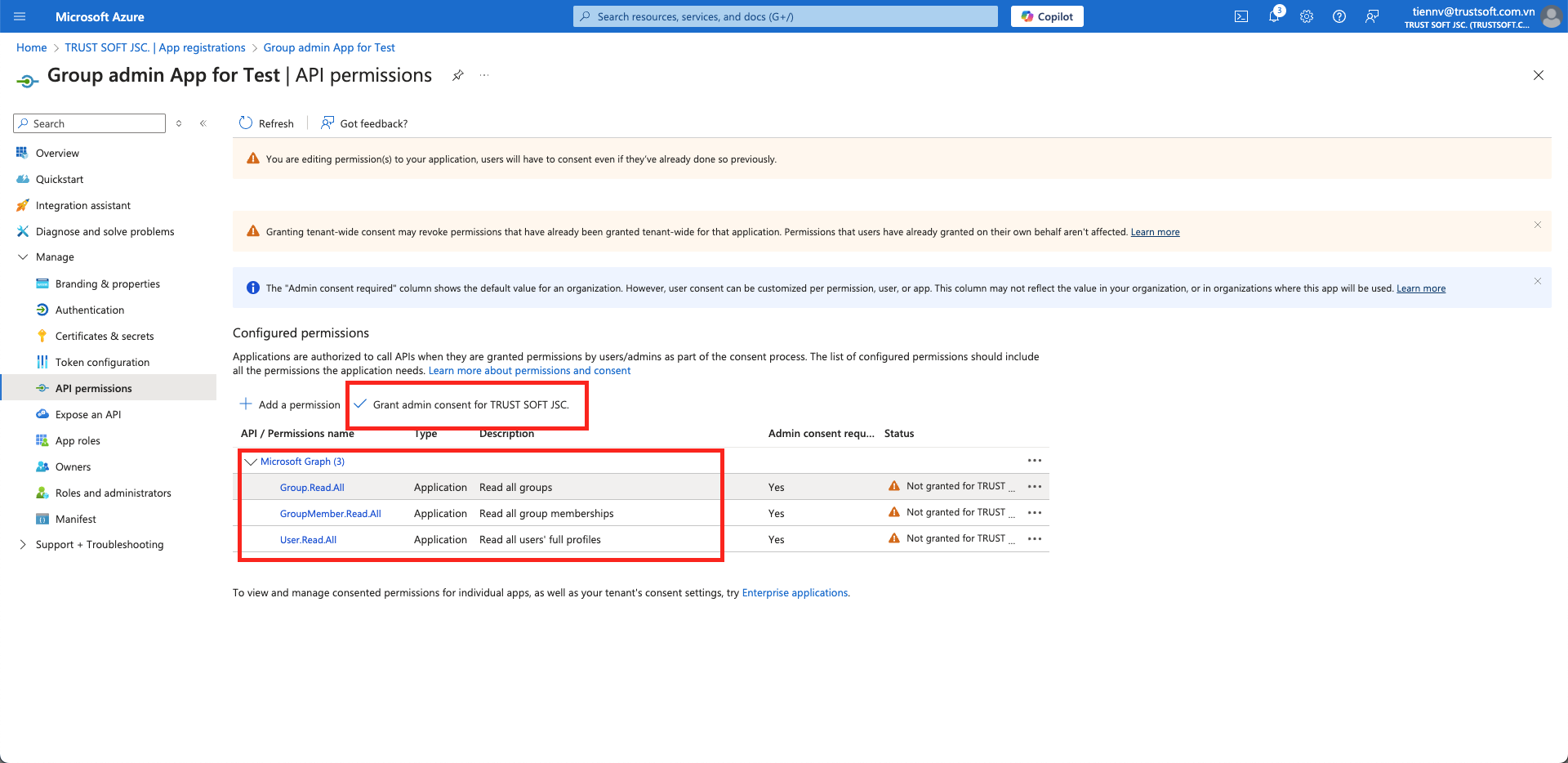
3. With admin rights, click the **`Grant admin consent`** link to approve the permissions.

<figure><img src="https://t36648312.p.clickup-attachments.com/t36648312/b6bcd9d9-6fdb-4bbe-90ad-afe5ada5c876/image.png" alt=""><figcaption></figcaption></figure>

## 3. Create a Client Secret Key

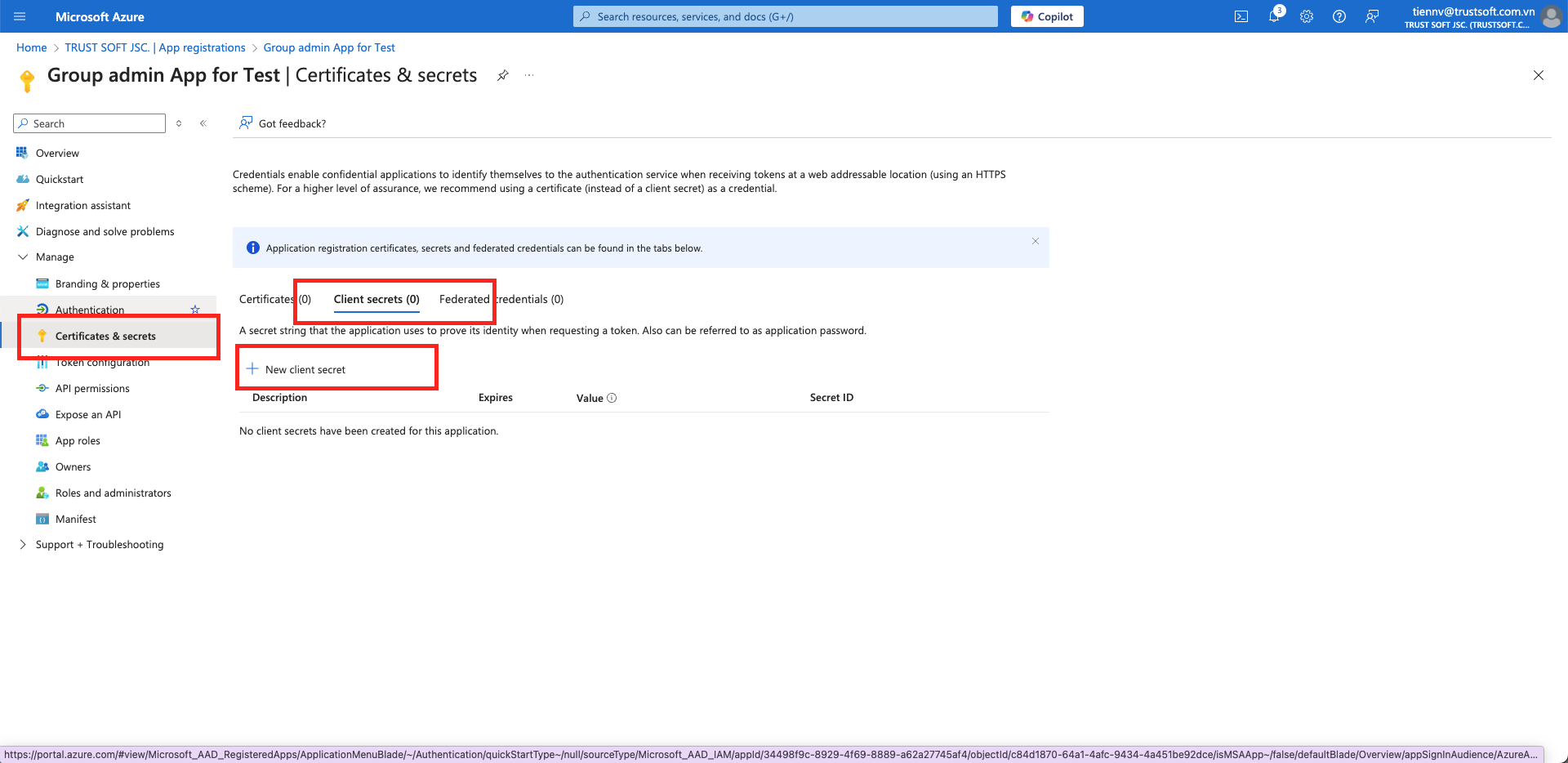
1. Navigate to the **`Certificates & Secrets`** page to create client secrets.

<figure><img src="https://t36648312.p.clickup-attachments.com/t36648312/9bb5a567-3bfb-4310-acb0-0b7f0e180957/image.png" alt=""><figcaption></figcaption></figure>

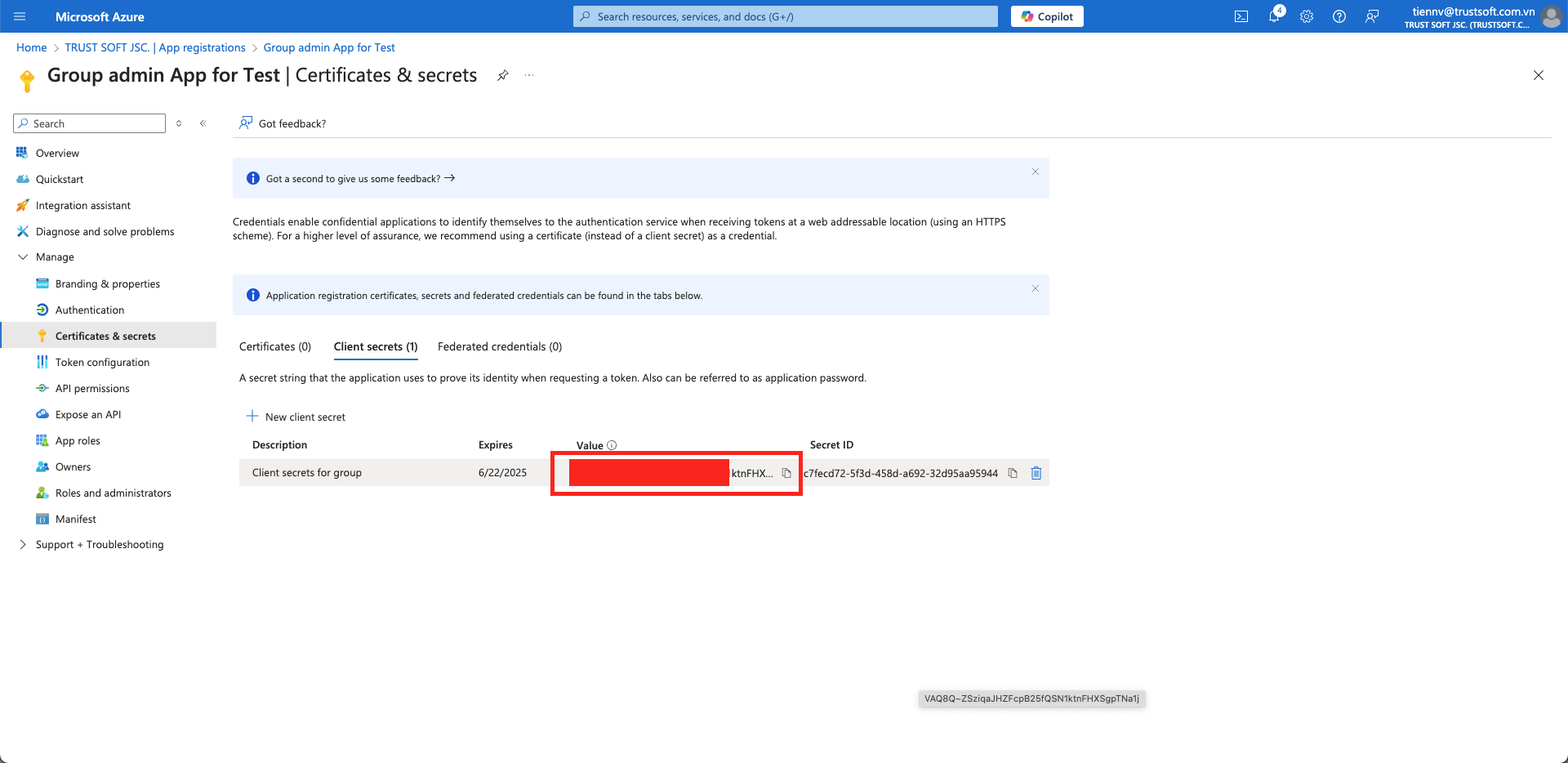
2. Copy the **Secret Key Value** (NOT the Secret ID) to the text file containing the Client ID and Tenant ID.

<figure><img src="https://t36648312.p.clickup-attachments.com/t36648312/5ce7a77c-fff2-4e54-ba79-b60da6227d12/image.png" alt=""><figcaption></figcaption></figure>

3. Your text file should now include

<pre><code><strong>Client Id: 4dbceba4-*******-960918801231
</strong>Client Secret: JPz******************
Directory (tenant) ID: cef6ac5c-7bc6-*****-fdf0
</code></pre>

## 4. Set up the Azure Groups Integration

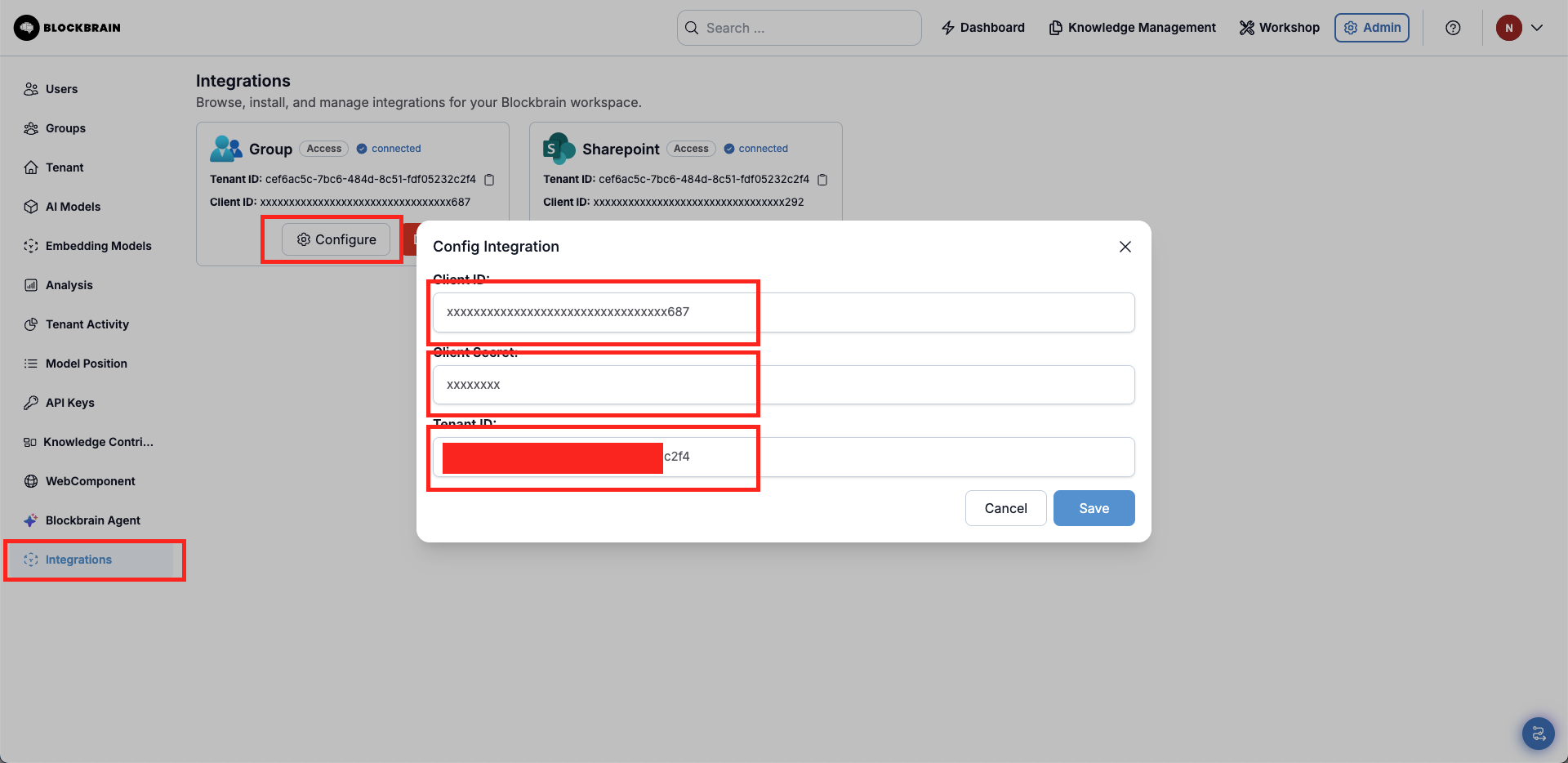
1. Inside of the Admin Integration Section on Blockbrain, provide the **`Client ID`**, **`Secret Key Value`, `Tenant ID`** of the Target Application, and a list of selected sites to connect to the Knowledge Bots platform.

<figure><img src="https://t36648312.p.clickup-attachments.com/t36648312/fc44c2f1-e9f7-4009-ab99-d7b221e1c617/image.png" alt=""><figcaption></figcaption></figure>

## 5. Sync your Azure Groups

1. In the Admin Groups Section on Blockbrain, use the **`Sync Azure Group`** Button to manually sync your groups from Azure.
<figure><img src="https://3232460952-files.gitbook.io/~/files/v0/b/gitbook-x-prod.appspot.com/o/spaces%2FIabFtGTeQzwfWCzp8vd6%2Fuploads%2Fwu3gkHcGrCI5gRD1fpM0%2FBildschirmfoto%202025-09-22%20um%2017.43.39.png?alt=media&#x26;token=29218466-3155-4ea7-8207-45345cd7a43e" alt=""><figcaption></figcaption></figure>